Why won't my QR code scan? 12 reasons and how to fix them
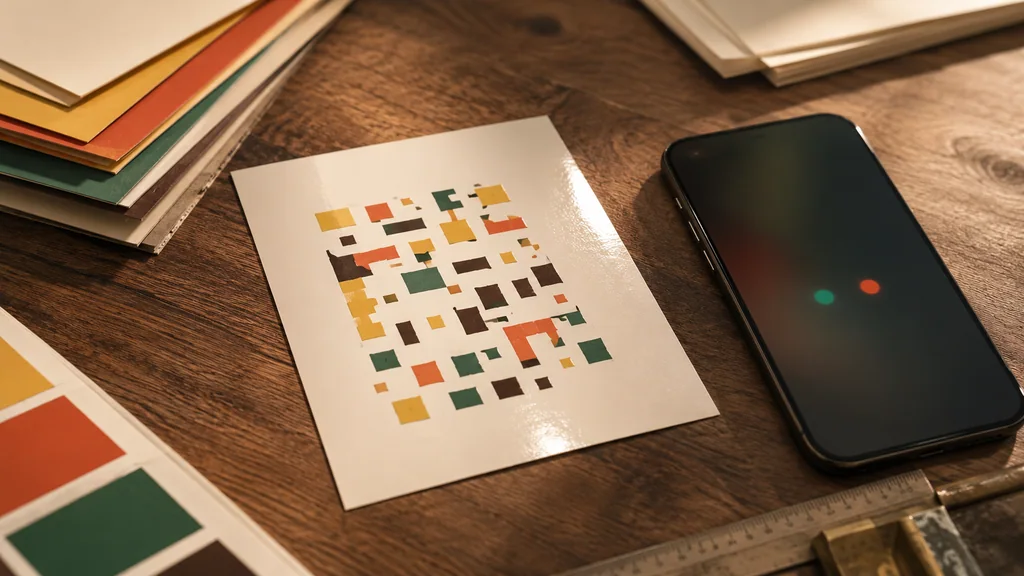
Common causes of unreadable QR codes include low contrast, cropped margins, dense data, small modules and a logo covering important patterns. Use dark modules on a light background, retain the quiet zone and keep the payload short. Decode the actual export and test a sample on the intended material and devices before a print run.
Start by testing, not guessing
Start by checking the actual image file. The tool tries the original plus grayscale, boosted-contrast and resized digital variants. Differences can help you find a fragile design, but they do not measure real camera distance, lighting or printed performance. Confirm the decoded content and test a physical sample.
The 12 most common reasons — and the fix for each
Nearly every unscannable code traces back to one of these. Work down the list; the first few cause the large majority of failures.
- Low contrast. The single most common cause. Scanners need a clear dark-on-light difference. Fix: dark dots on a white or very light background; avoid pastel-on-pastel.
- Inverted (negative) colors. Light dots on a dark background break many phone cameras even though the code is 'technically' valid. Fix: keep the data modules dark and the background light.
- No quiet zone. A QR code needs a blank margin (about 4 modules wide) all around it. Fix: never crop tight to the edge; leave white space.
- Printed too small. Small modules can lose detail in the final print. Increase the code’s physical size or shorten its content, preserve the quiet zone and compare a printed sample with your target camera.
- Too much data. Long URLs and big vCards make a dense, high-version code with tiny modules that smear when printed. Fix: shorten the URL, trim the vCard, or print larger.
- Logo too big or over a functional pattern. Keep the logo small and preserve the finder patterns and quiet zone. Higher error correction is not permission to cover a fixed percentage of the artwork; reduce or remove the logo if the actual export fails to decode.
- Gradient or fancy shapes overdone. Decorative dot/eye shapes are fine; the danger is a gradient whose lightest stop is too pale. Fix: keep both gradient stops genuinely dark.
- Blurry or low-res print. A low-DPI PNG stretched onto a poster turns crisp modules to mush. Fix: export SVG (vector) for anything printed.
- Reflective or curved surface. Glossy lamination and bottles/cups create glare or distortion. Fix: matte finish, flatter placement.
- Damaged or partially covered code. Folds, staples and stickers across the code destroy modules beyond what error correction can recover. Fix: reposition; reprint.
- Wrong content type. A WiFi or vCard payload built with the wrong syntax scans but does nothing useful. Fix: generate it with a dedicated WiFi / vCard tool, not a raw-text field.
- A 'dynamic' code that expired. If you used a free site that hands out short-link redirect codes, the code dies when the trial ends. Fix: use a static code that encodes the content directly — it can't expire.
Contrast and quiet zone, in plain terms
Two ideas fix most codes. Contrast: a camera distinguishes modules by brightness, so the dark parts must be clearly darker than the light parts — black-on-white is safest, dark-navy-on-cream is fine, grey-on-beige is not. Quiet zone: the empty margin tells the scanner where the code begins and ends. Crop it away and many scanners simply never lock on. Leaving roughly four modules of white space around the code is the cheapest reliability you can buy.
If it's for print, export SVG
Use SVG where the tool offers it to preserve vector edges during layout. Some composed signs export PNG instead; keep enough pixels for the intended print size. Neither format guarantees physical readability, so scan a sample before producing a batch.
Frequently asked questions
My QR code scans on my phone but not on the printed version — why?
Paper introduces ink spread, reflections, folds and different contrast from a screen. Check the finished module size and margins, and avoid enlarging a low-resolution PNG. Scan a sample on the intended material to identify which change helps.
Can colored QR codes be scanned?
Yes, as long as the dark/light contrast holds. Keep the data modules genuinely dark and the background light; avoid inverted (light-on-dark) codes and pale gradients. Test before printing — a color that looks fine on screen can fail under store lighting.
Does adding a logo stop a QR code from scanning?
A logo can make a code unreadable. Use a small logo, preserve functional patterns and check the exported file. Error-correction percentages describe codewords, not a guaranteed safe logo area. Scan a physical sample before printing a batch.
How do I test if a QR code will scan before I print 1,000 of them?
Check the original and digital variants, and compare the decoded content. Brightness and edge clues do not certify module contrast, a four-module quiet zone or printed performance. Inspect the actual export and scan a physical sample.